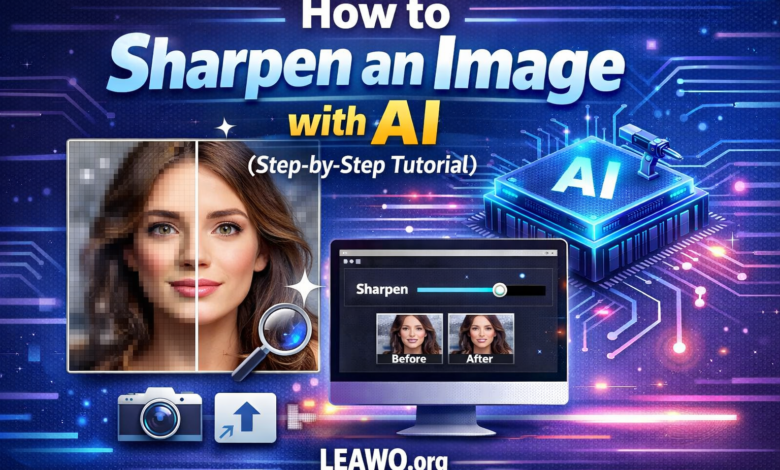
Blurry photos can ruin an otherwise great shot. Luckily, AI makes it easy to fix them. Modern tools can restore sharpness and clarity in just a few clicks. This guide shows you three proven ways to sharpen an image using AI, from professional software to quick online tools.
Part 1: How to Sharpen an Image in Photoshop Using AI
Adobe Photoshop is one of the most powerful image editors available. It includes AI-driven sharpening features that deliver professional results. You have two main options: Neural Filters and Smart Sharpen.
Method 1: Use Neural Filters (AI-Based)
Neural Filters use machine learning to enhance your image automatically. This method works well for portraits and soft-focus shots.
Steps:
- Open your image in Photoshop.
- Go to Filter > Neural Filters.
- Click on Photo Restoration or Super Zoom.
- Adjust the sharpness slider to your preference.
- Click OK and export your sharpened image.
Method 2: Use Smart Sharpen (More Manual Control)
Smart Sharpen gives you more precise control over the sharpening process. It is ideal when you want to fine-tune edge detail and reduce noise manually.
Steps:
- Open your photo in Photoshop.
- Go to Filter > Sharpen > Smart Sharpen.
- Set the Amount and Radius values.
- Choose the type of blur to remove: Gaussian, Lens, or Motion.
- Click OK to apply the changes.
Part 2: How to Sharpen an Image with Leawo Photo Enlarger (Desktop Tool)
If you want a simpler desktop solution, Leawo Photo Enlarger is an excellent choice. It uses advanced AI to sharpen and enlarge images in one step. You do not need any design experience to use it. The one-click sharpening feature makes the process fast and effortless.
It is especially useful when you need to increase image resolution without losing quality. The AI engine preserves fine details while removing blur.
Steps:
- Download and install Leawo Photo Enlarger on your computer.
- Open the software and import your blurry image.
- Select your desired output size or resolution.
- Click Enlarge Photo to let the AI sharpen and upscale your image.
- Save the finished image to your device.
Part 3: How to Sharpen an Image with Online AI Sharpening Tools
VanceAI Image Sharpener is a popular browser-based tool. It is fast, simple, and requires no software installation. You just upload your photo, and the AI does the rest. It is perfect for quick fixes on the go.
Steps:
- Visit the VanceAI Image Sharpener website.
- Click Upload Image and select your photo.
- Wait a few seconds for the AI to process your image.
- Preview the sharpened result.
- Download the enhanced image to your device.
See also: corporate tech support line
Part 4: Best AI Sharpening Tool by Use Case
Each tool has its own strengths. Here is a quick guide to help you pick the right one:
- Choose Photoshop if you are a professional editor who needs full creative control. It offers the most advanced options but requires a subscription and some learning time.
- Choose Leawo Photo Enlarger if you want a reliable desktop tool with one-click AI sharpening. It is ideal for batch processing and improving image resolution without quality loss.
- Choose VanceAI if you need a fast, no-install solution. It is best for casual users who want quick results directly from their browser.
Part 5: Conclusion
Sharpening blurry images no longer requires expert skills. AI tools have made the process simple and accessible for everyone. Photoshop offers precision for professionals. Leawo Photo Enlarger delivers fast, high-quality desktop results. VanceAI is perfect when speed and convenience matter most.
Try one of these tools today and give your photos the clarity they deserve.